

In many companies, part of the Windows estate cannot be managed like a regular office workstation: devices such as kiosks, shared devices or computers connected to production equipment must always remain available, and an installation or restart triggered by Windows Update can interrupt a service that users and the business depend on. For this type of device, deciding when updates can act is as important as deciding which updates to approve.
With service release 2611, Microsoft Intune introduces maintenance windows for operating system and driver updates on Windows devices: a policy that defines when automatic Windows Update actions can start.
In this article, we will look in detail at the creation process and at how these maintenance windows interact with the update policies already in use.
Overview
Maintenance Windows move update control to a different level: no longer just which updates to install, but when Windows can act to apply them; IT administrators define a window with a start date, time, duration and recurrence, and choose which operations can be performed. The scope is Windows Update as a whole: quality updates, feature updates, Hotpatch, .NET, drivers and firmware.
However, the Maintenance Window only determines when updates act; defining which updates are approved and offered to the device continues to depend on the update policies already in use.
For those coming from Microsoft Configuration Manager, the concept is not new: in Configuration Manager, maintenance windows are configured in the properties of a device collection, with an effective date, start and end time, and recurrence. As in Intune, they determine when the system can perform activities that impact devices: application and package deployments, software updates, compliance settings evaluation and task sequences.
Compared to this model, the Intune feature changes scope and granularity; the main differences are summarized in the following table:
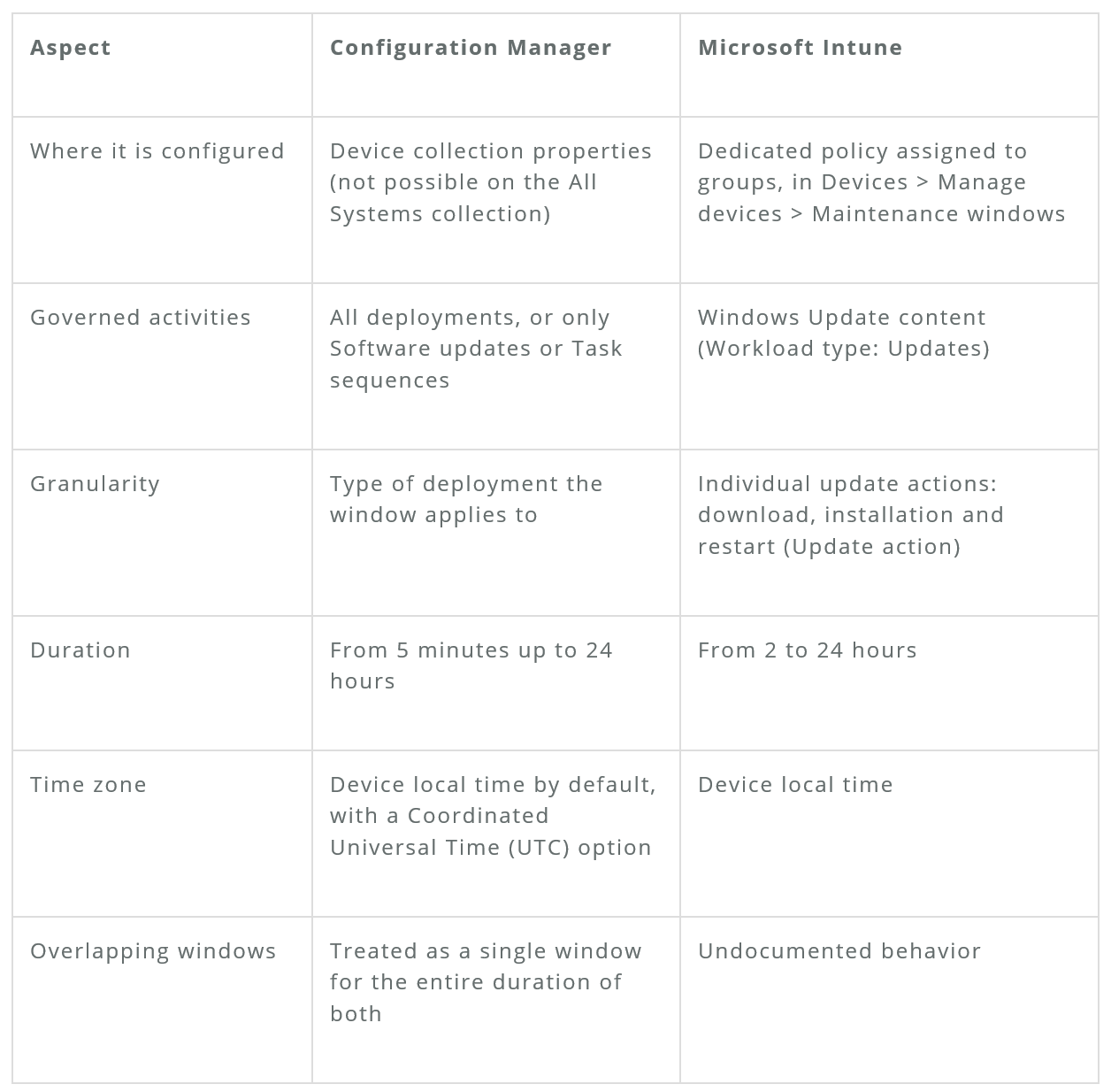
The most evident difference concerns downloads: in Configuration Manager, maintenance windows only act on when the deployment runs, and deployments configured to download and run locally can download content outside the window; in Intune, with the Download, install and restart option, the download is also restricted to the window. In both solutions, the user retains some leeway: in Configuration Manager an installation started from Software Center begins immediately, while in Intune users can start update actions outside the window when the Windows experience and other policies allow it.
The core of the policy is the Update action setting, which defines the automatic actions restricted to the window: three options are available, and unselected actions continue to follow the other applicable Windows Update policies. The behavior of each option is summarized in the following table:
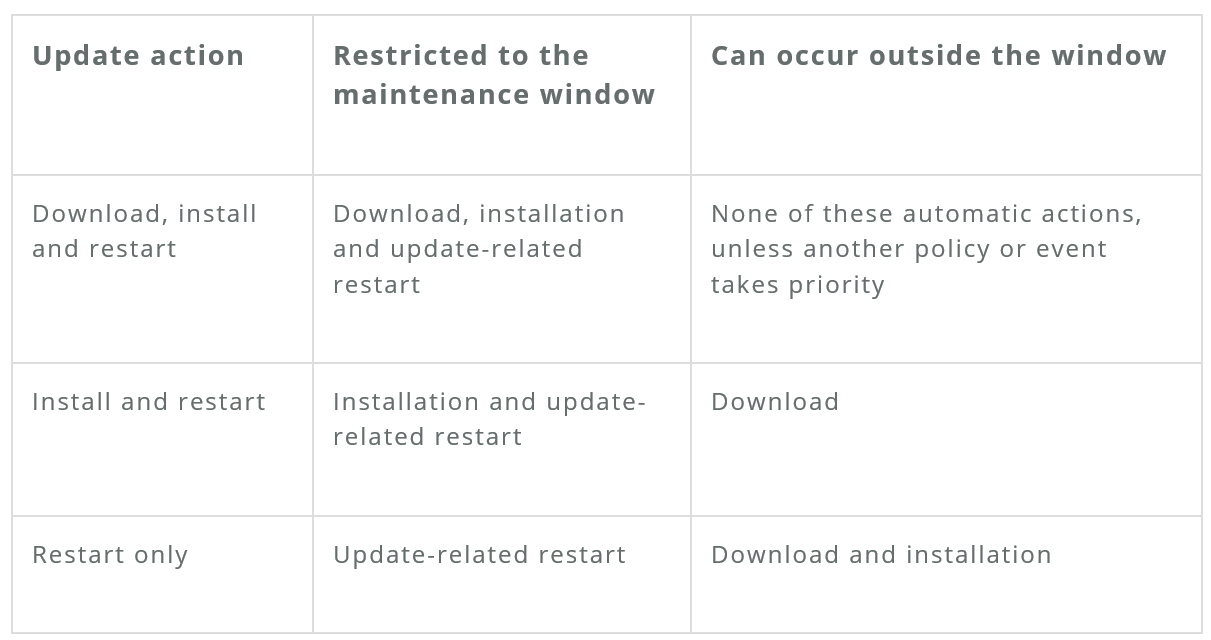
It should be noted that scheduling always refers to the device’s local time; therefore, a window configured with a start time of 23:00 opens at 23:00 in each device’s local time zone. The window governs when an action starts, not when it completes. An action that starts during the window can continue after the window closes; therefore, a maintenance window does not guarantee that all update work finishes by the end of the scheduled period.
Requirements
The requirements to use the Maintenance Windows feature in Microsoft Intune are minimal:
· Windows 11, version 24H2 with KB5077181 (build 26100.7840) or later;
· Devices enrolled in Microsoft Intune;
Policy Configuration
This phase prepares the configurations required to define maintenance windows on devices managed by Microsoft Intune. The steps required to create the policy are listed below:
· Sign in to the Microsoft Intune console with an administrative account.
· Go to Devices > Manage devices > Maintenance Windows.
· Click the Create button.
· Enter a name for the policy to be created and an optional description.
· Click the Next button.
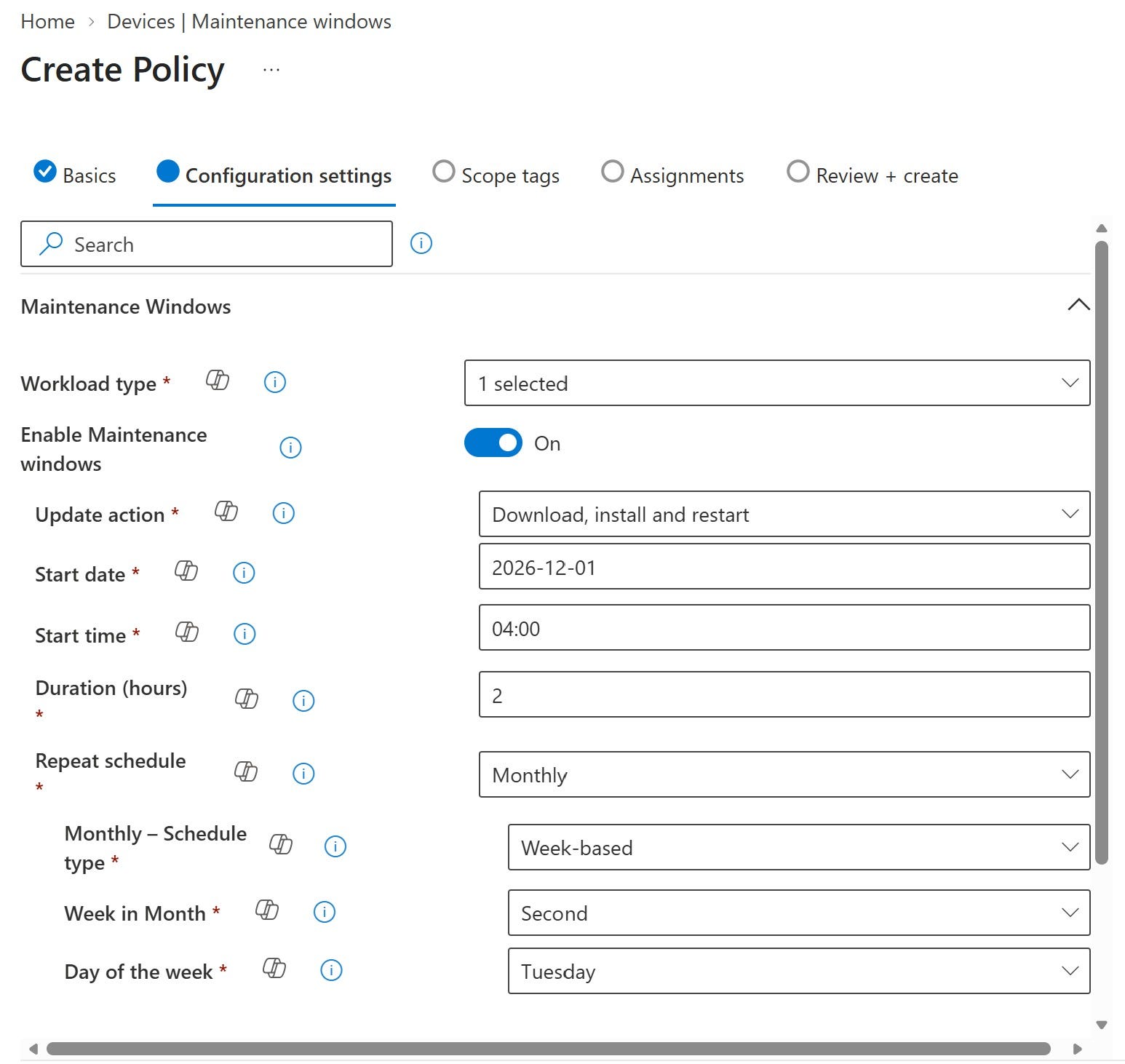
· In the Configuration settings section, expand the Maintenance Windows drop-down menu and set Workload type to Updates.
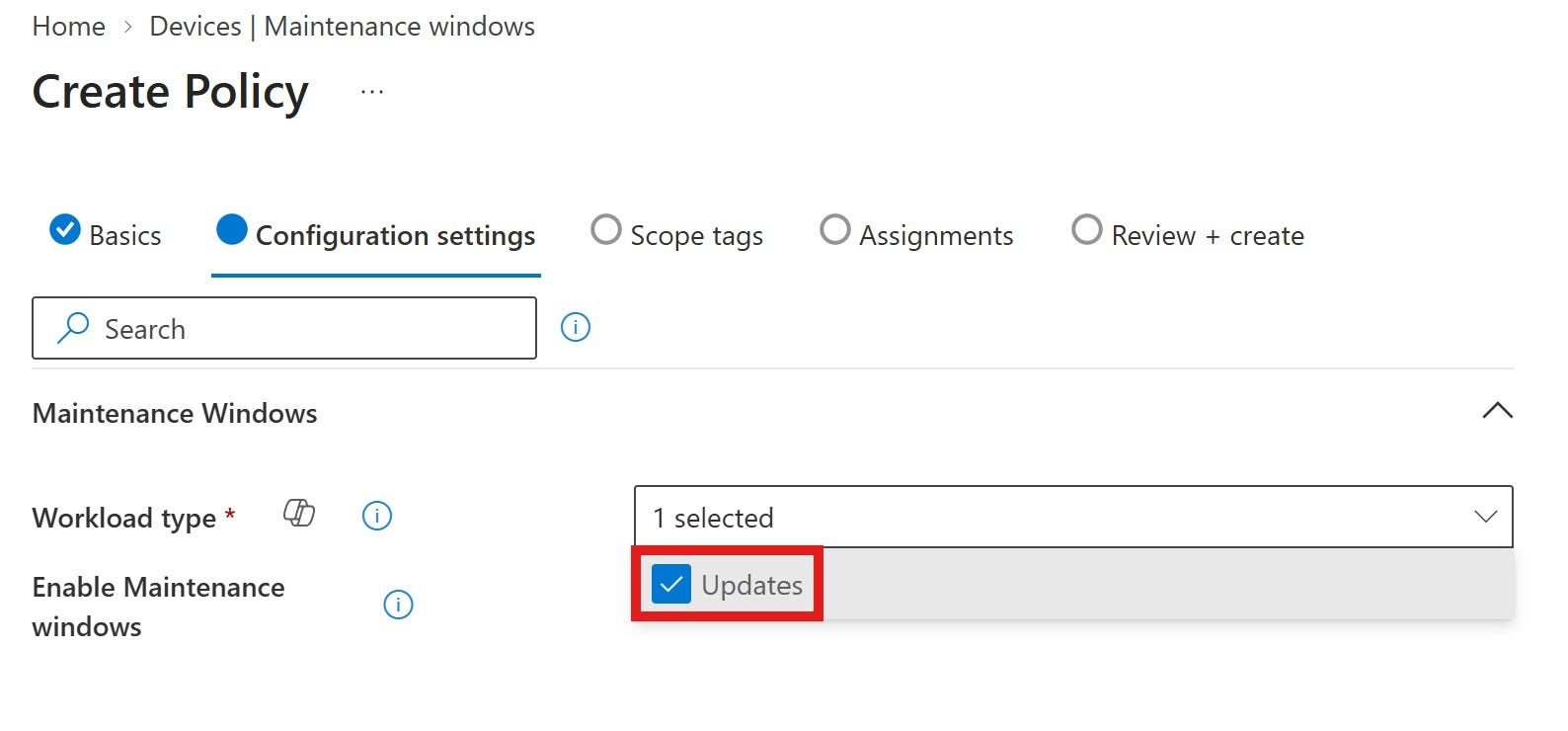
· Set the Enable Maintenance windows slider to On.
· For the Update action setting, select Download, install and restart, Install and restart or Restart only, depending on the activities to restrict.
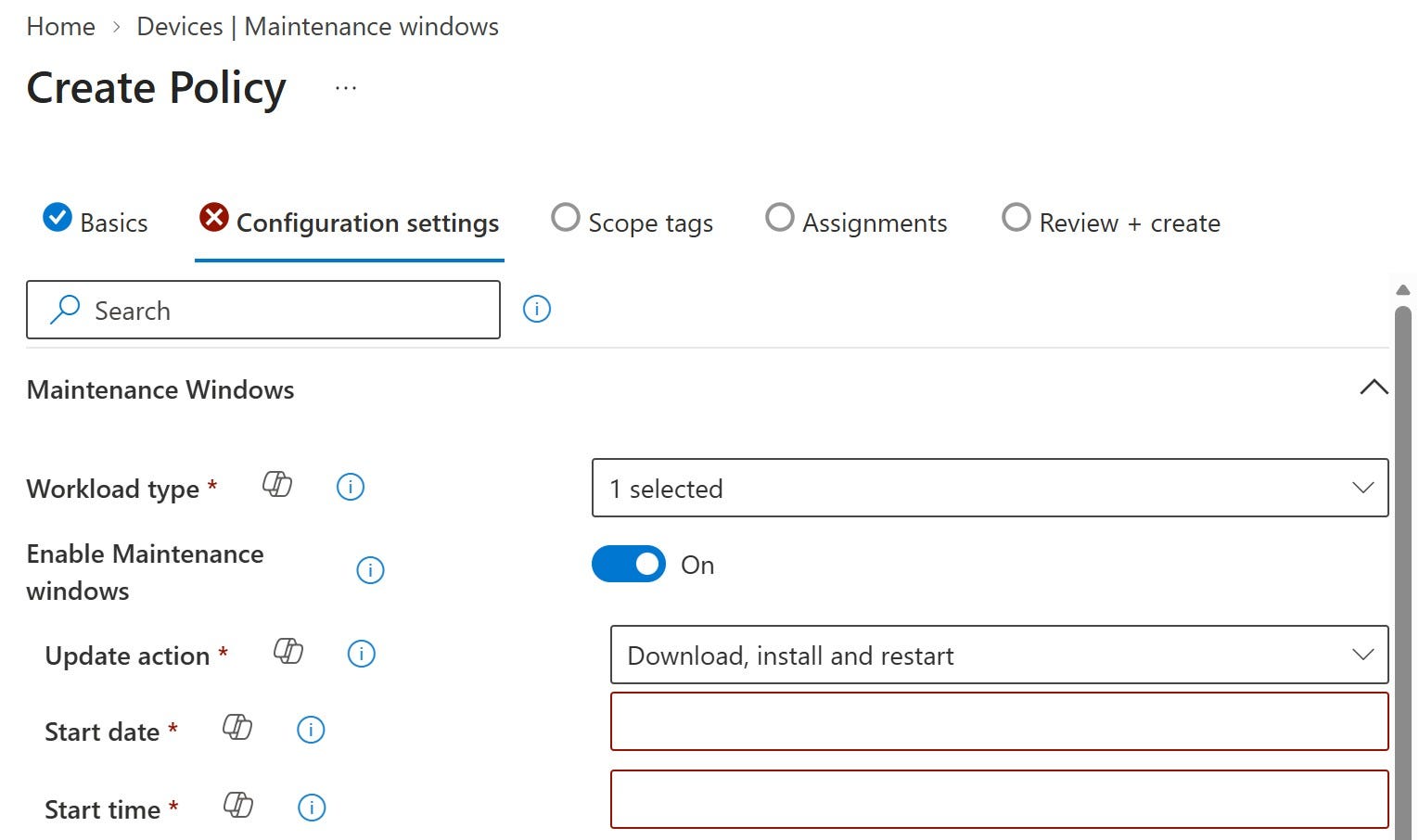
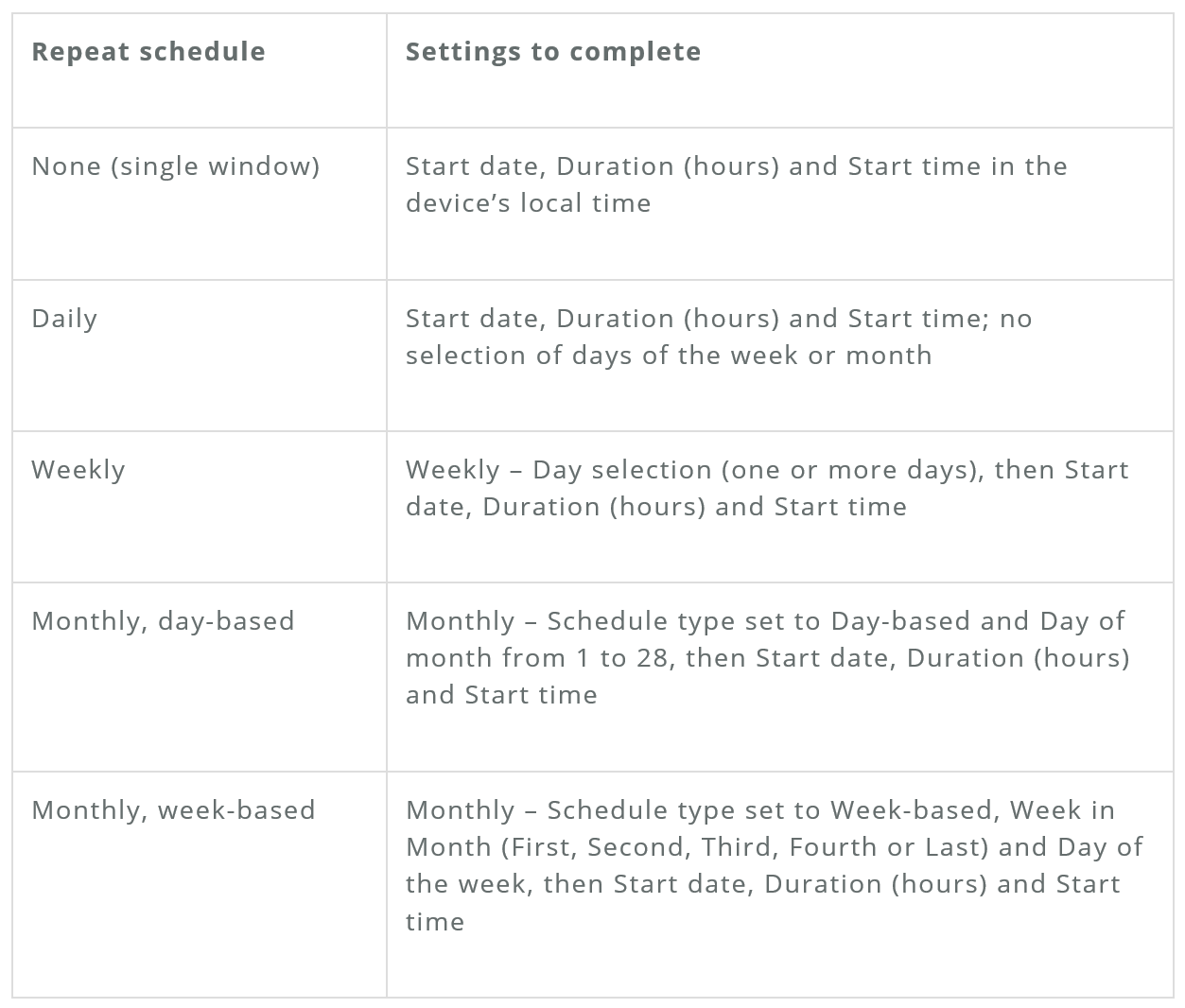
In the Intune console, the schedule is configured in a specific order: first, choose the recurrence with Repeat schedule; depending on the choice, the specific options appear, for example the days of the week for a weekly window. Then complete the start date (Start date, in YYYY-MM-DD format), the duration (Duration (hours), from 2 to 24 hours) and the start time (Start time, in HH:MM format).
The start date must always be specified, but its role changes with the type of window. In a single window, it is the day the maintenance takes place; in a recurring window, Windows starts the first occurrence from the nearest date that matches the configured recurrence.
The following table summarizes the settings to complete for each schedule type:
In the example below, we configured a recurring maintenance window on the second Tuesday of the month from 4:00 AM to 6:00 AM.
· Once the available options are configured, click the Next button.
· Assign the desired scope tag(s) and click the Next button.
· In the search field, search for a specific Entra ID group to deploy the profile to a subset of systems, or use the All devices or All users options to deploy the policy to the entire Windows device estate or to all users.
· Define an optional filter (include or exclude) to make the policy targeting more granular.
· Then continue with the wizard by clicking the Next button.
· Click the Create button to complete the policy creation process.
References
Below are some useful references to the official documentation:
· What’s new in Microsoft Intune – Week of November 16, 2026 (Service release 2611)
Conclusions
Maintenance Windows give Microsoft Intune native control over when Windows Update can download, install or restart devices that must remain available during business hours; adopting this policy allows IT Admins to concentrate update activity for devices such as kiosks or production equipment into scheduled periods, while keeping update approval and availability in the existing policies.